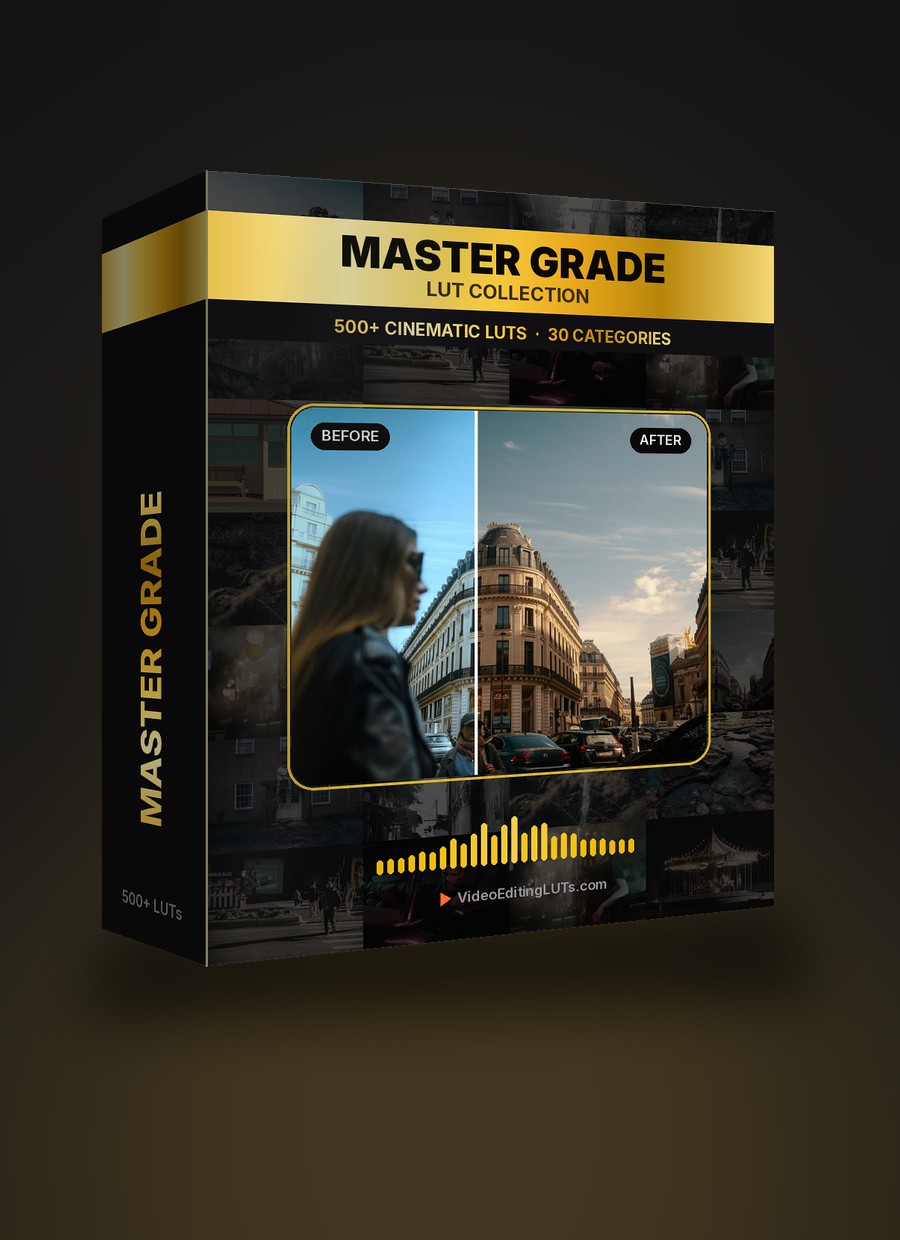
Free LUT Pack for Video Editors
12 free professional LUTs designed for video editors. One-click cinematic, warm, moody, and retro looks. Works in Premiere Pro, DaVinci Resolve, Final Cut Pro, CapCut, and more.
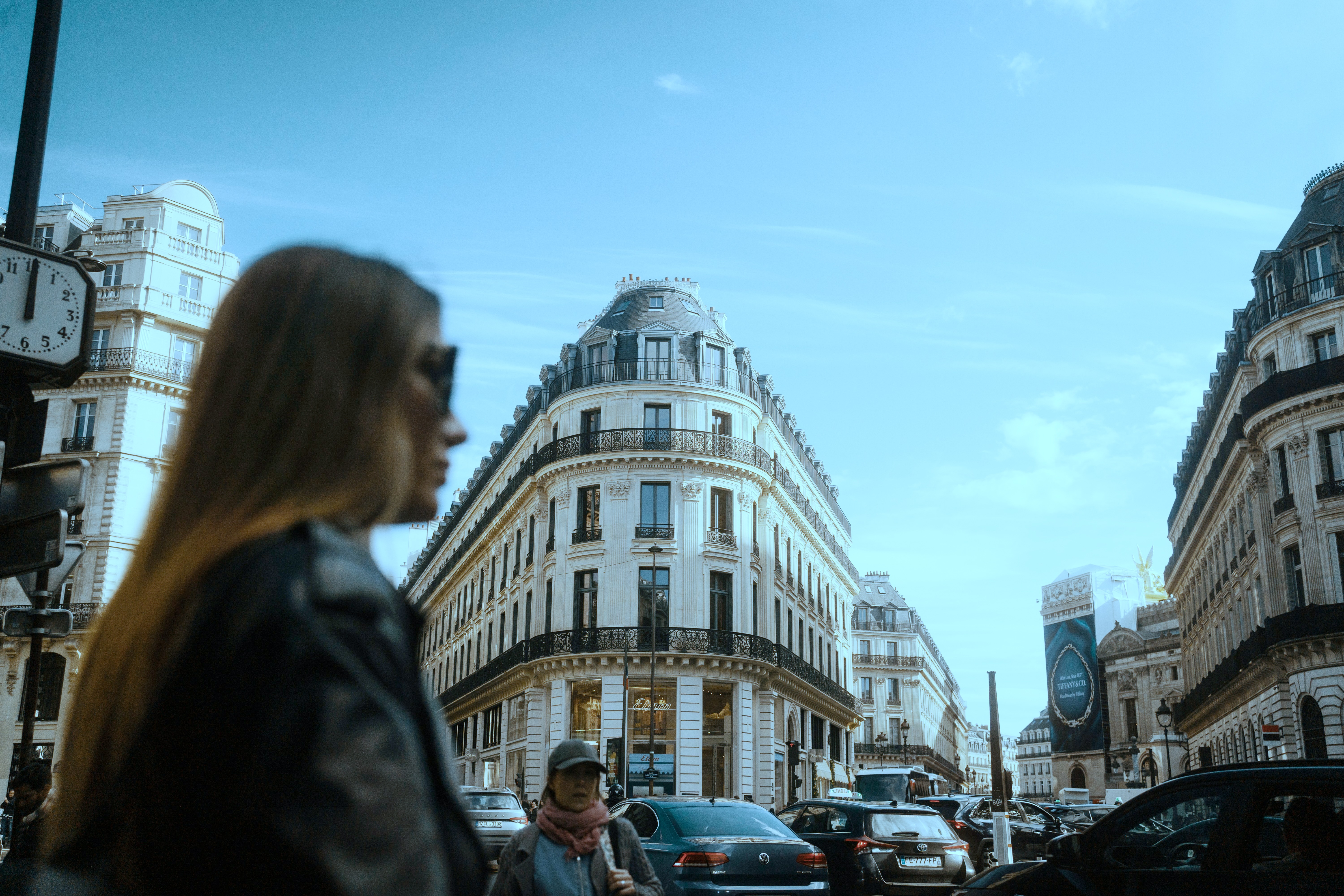
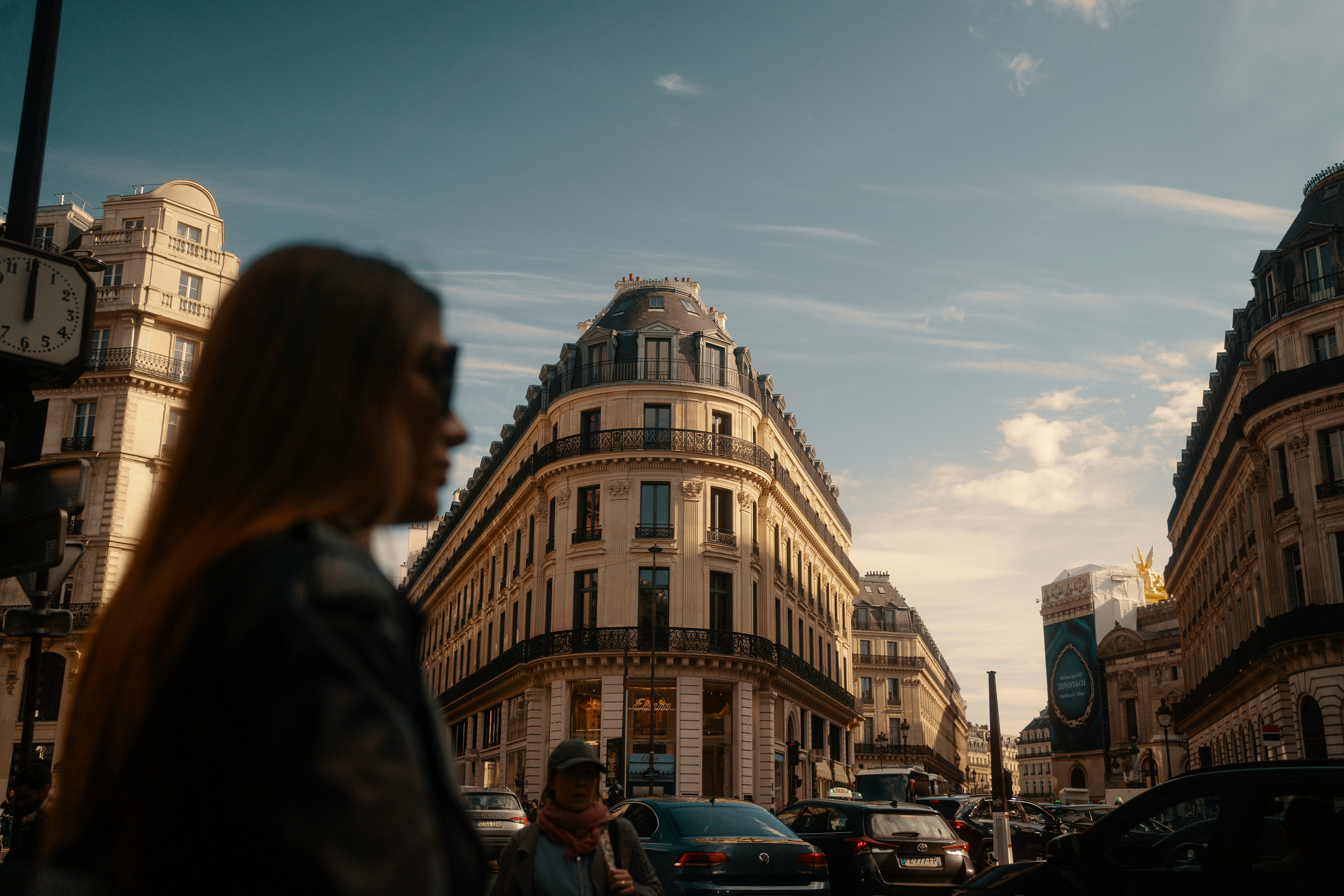
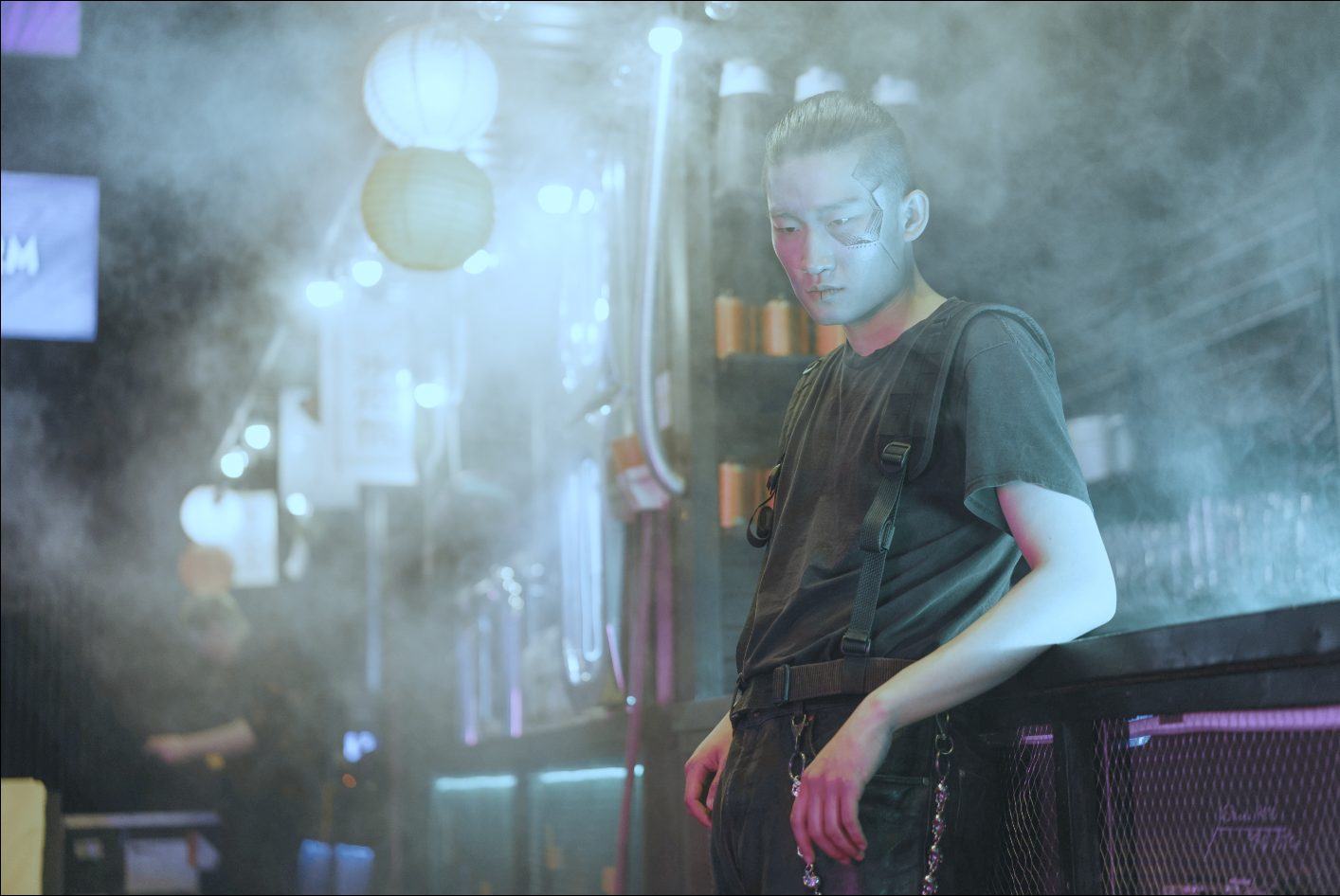
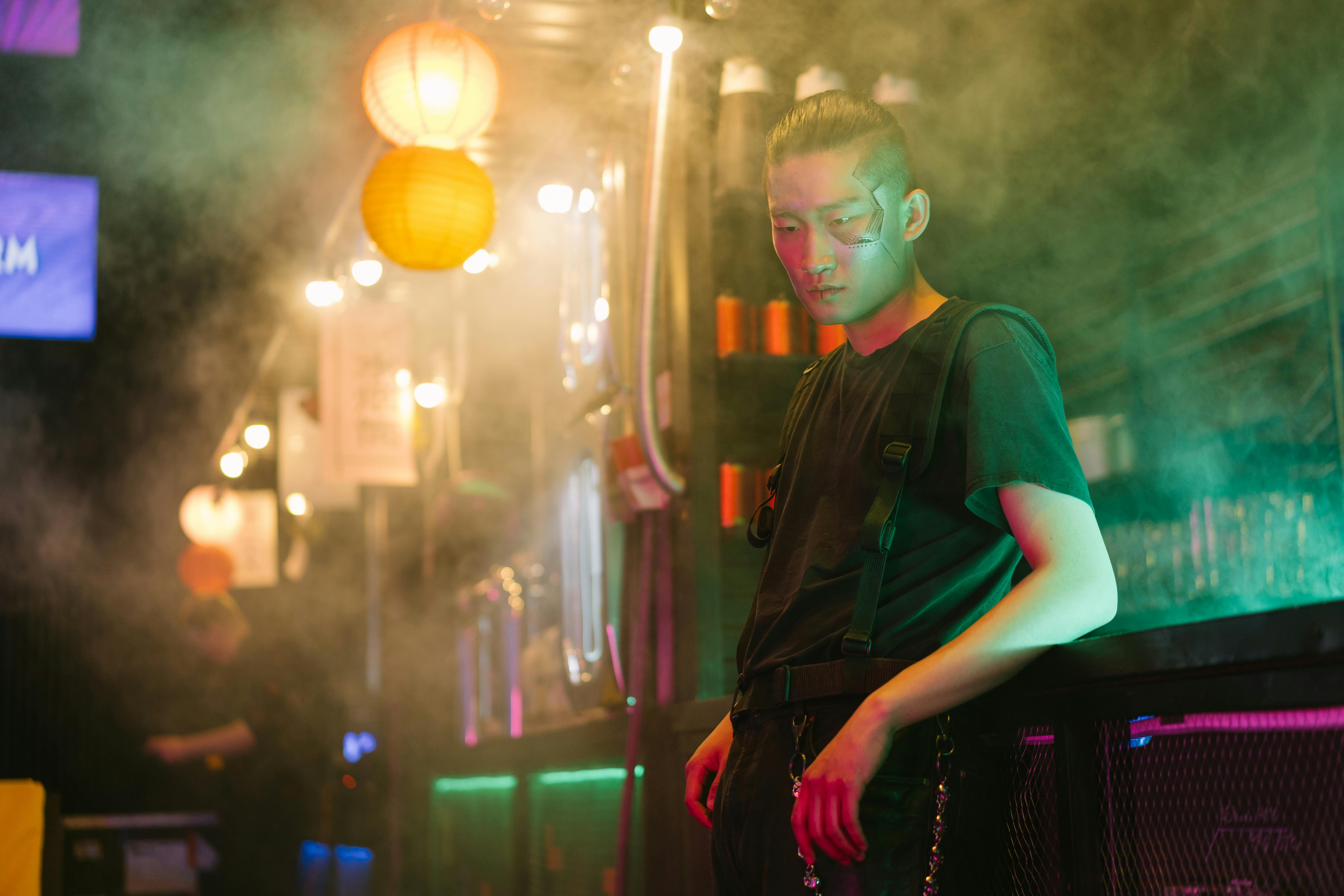
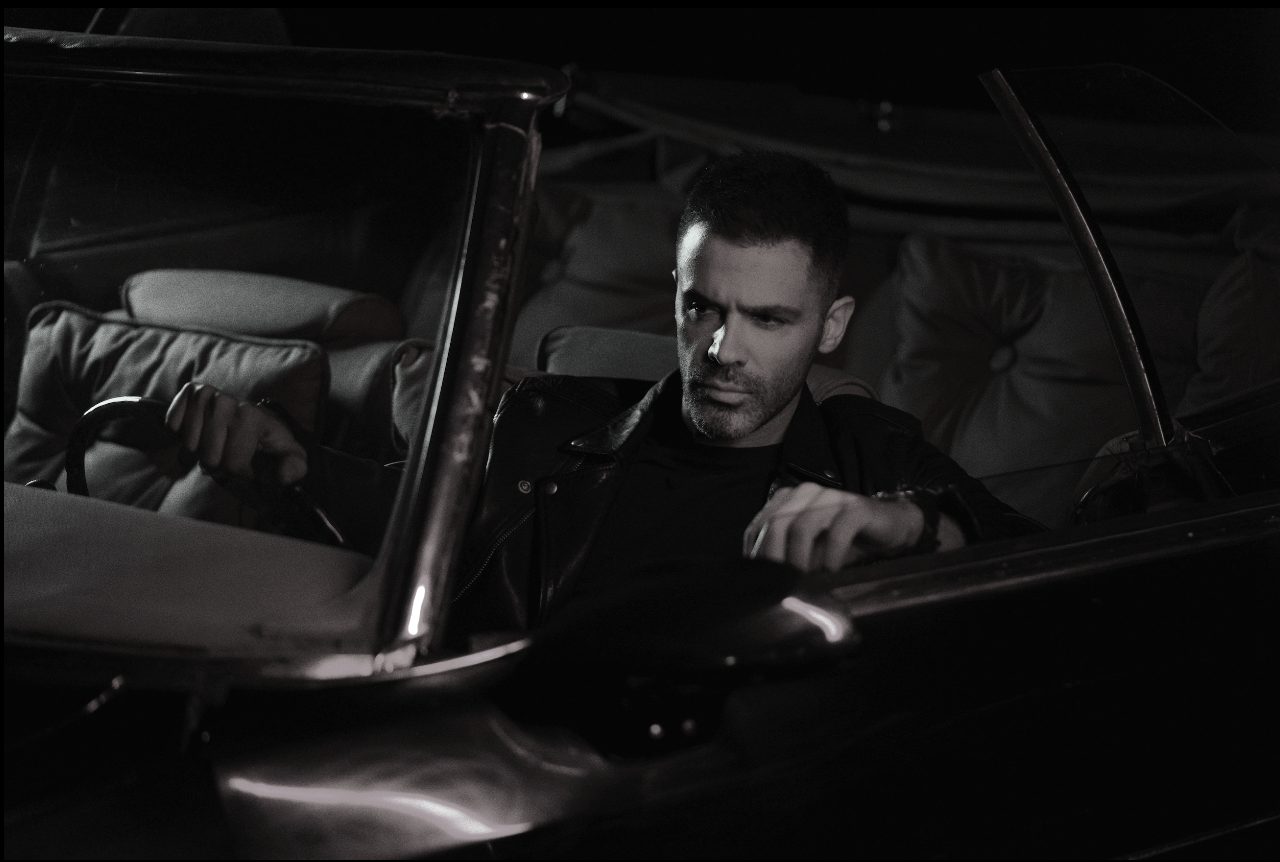
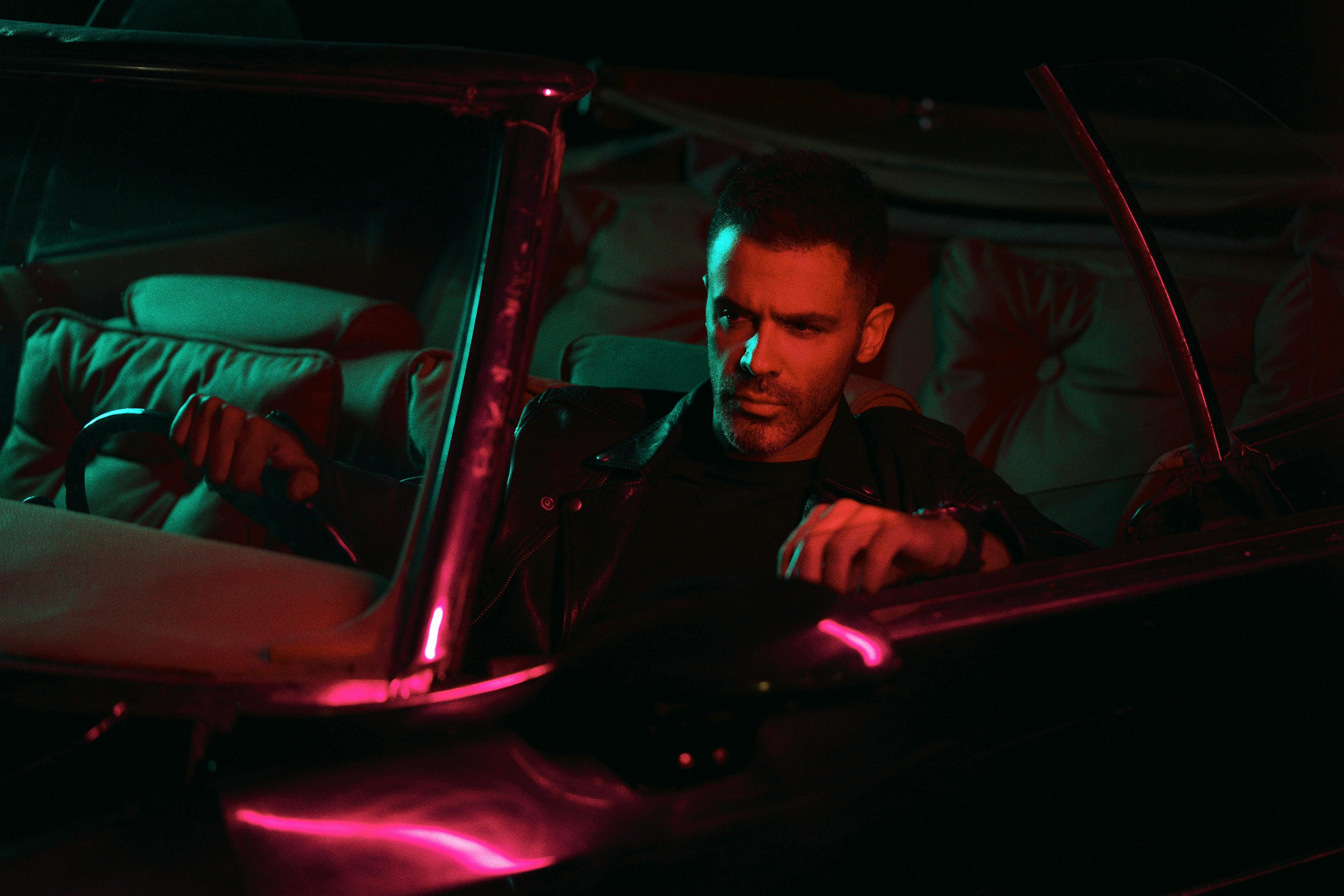
Transform flat, ungraded footage into cinematic color in a single click. No manual color grading skills needed.
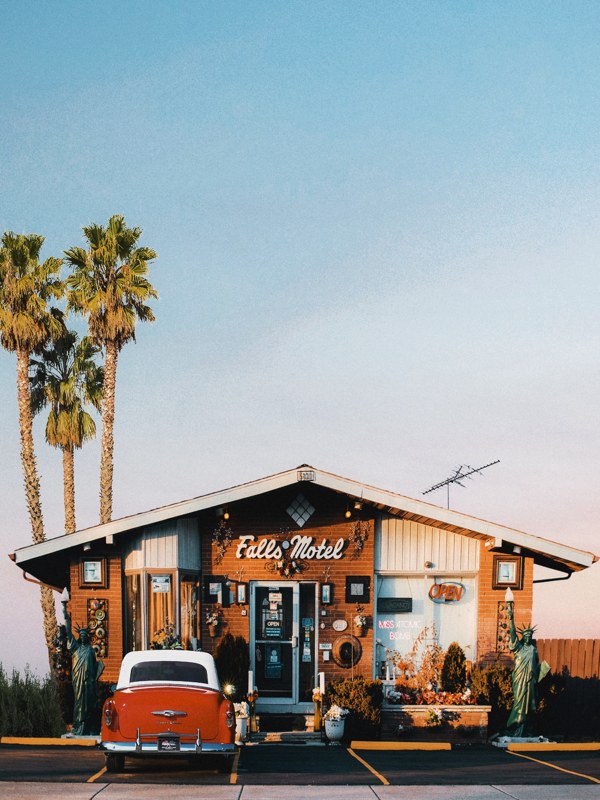
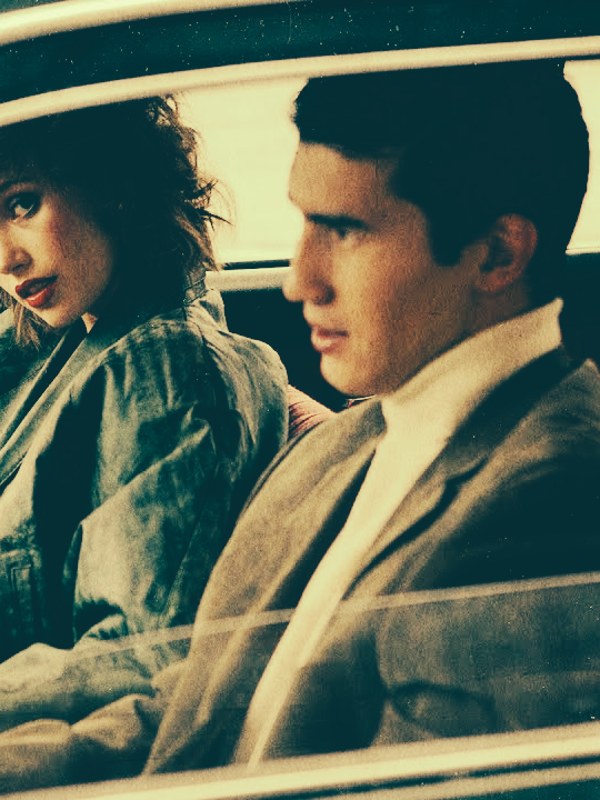
Before
After LUT
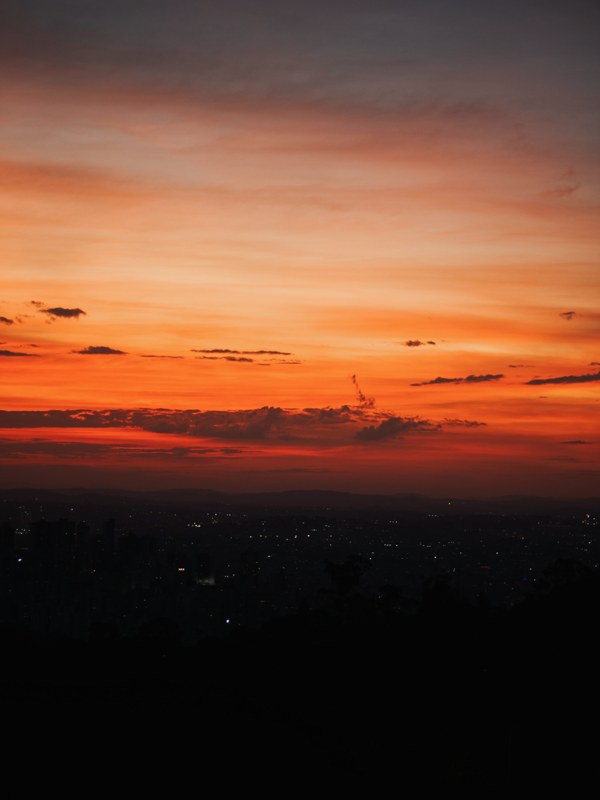
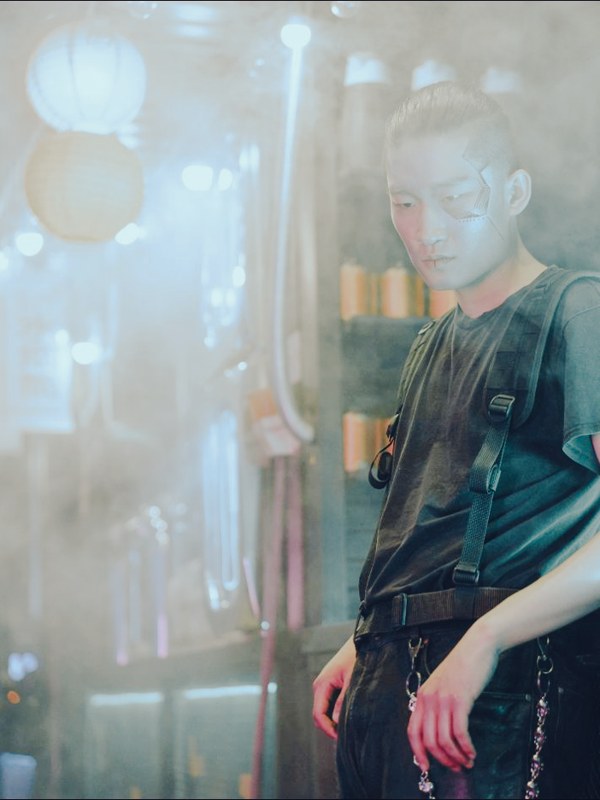
Before
After LUT
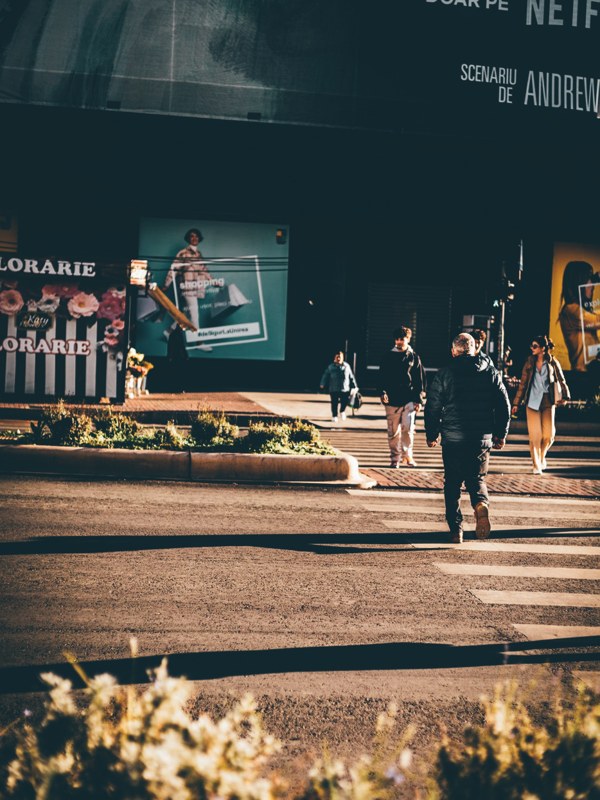
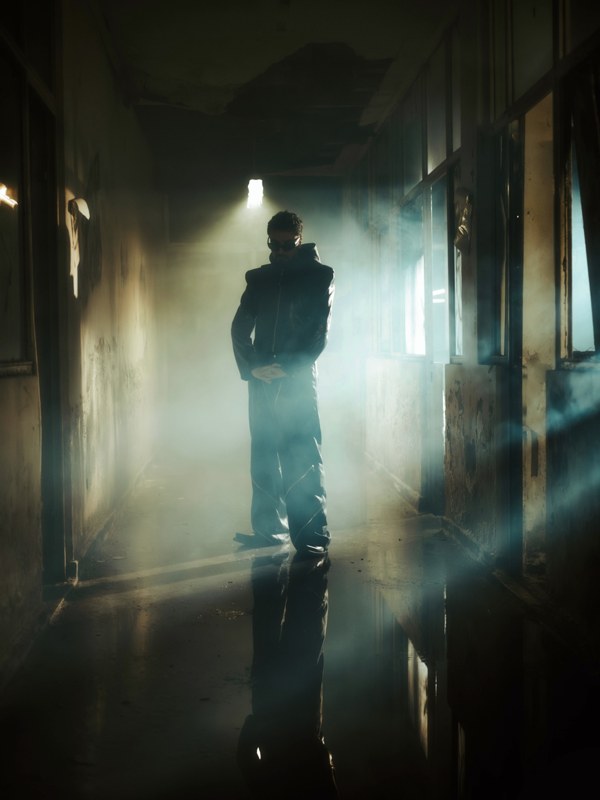
Before
After LUT
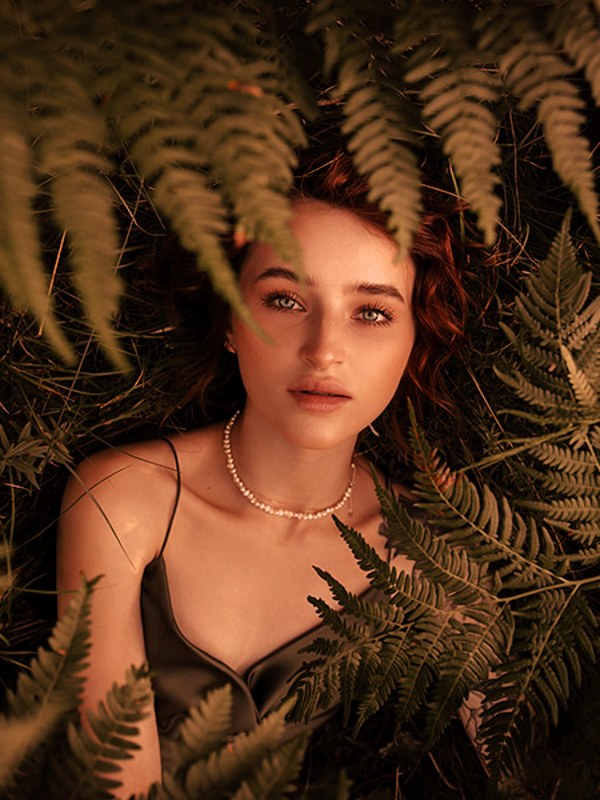
From classic Hollywood grades to vintage film prints — 12 hand-picked LUTs covering every style and mood.
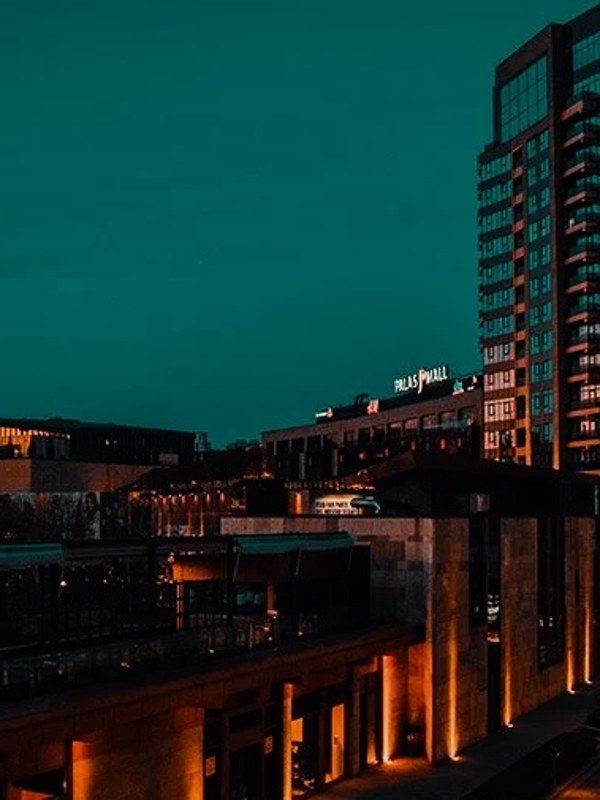
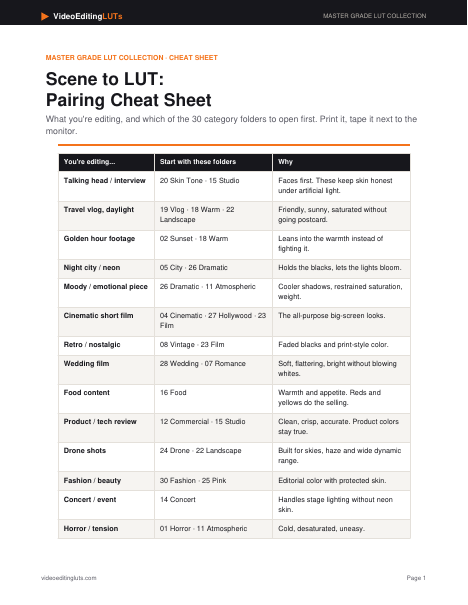
Find the right LUT for your content type. From travel vlogs to cinematic short films — there's a look for every project.
Standard .cube format — drag, drop, and color grade in the editor you already use.
Also compatible with After Effects, Filmora, iMovie, Sony Vegas, Avid Media Composer, HitFilm, and any NLE that supports .cube LUT files. Works with footage from any camera — iPhone, Sony, Canon, Fuji, Panasonic, DJI, GoPro, and more.
Enter your email and get instant access to all 12 .cube LUT files. No credit card required.
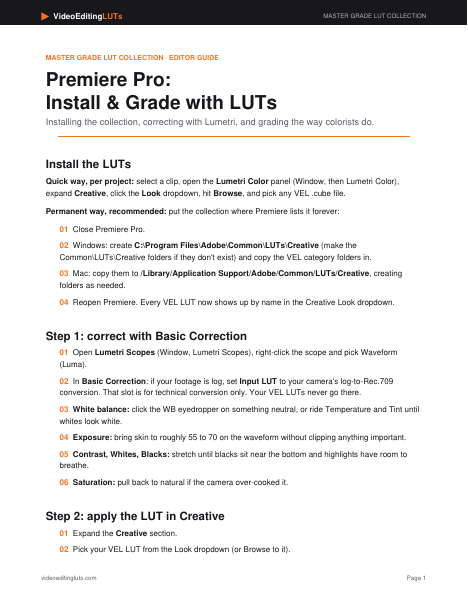
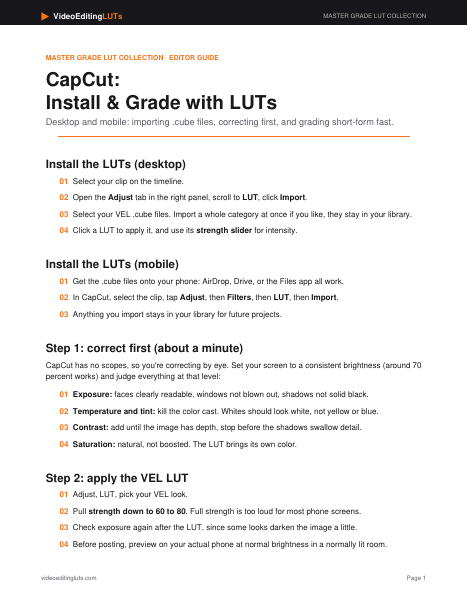
Open Premiere Pro, Final Cut, DaVinci Resolve, or CapCut and import the .cube file into the color panel.
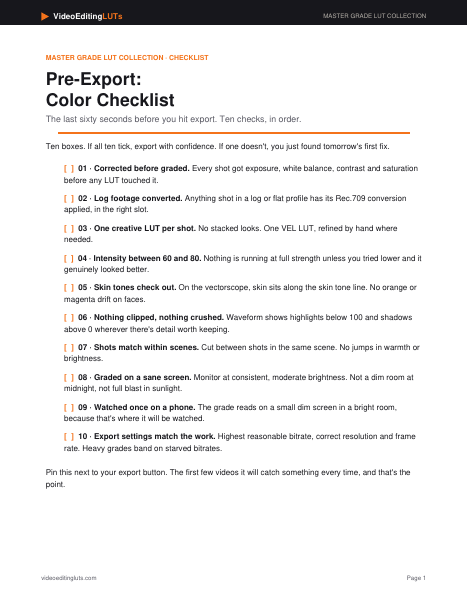
Apply the LUT, dial the intensity to 60–80%, and export your cinematic YouTube video.
Enter your email and get instant access to all 12 professional .cube files. No credit card, no catch.
Instant download. No spam, ever.
VideoEditingLUTs.com offers a free starter pack of 12 professional .cube LUTs designed specifically for YouTube creators. The pack includes cinematic, warm vlog, clean modern, moody dark, retro film, and black & white looks — covering the most popular YouTube video styles. These LUTs are built from the ground up for YouTube content, unlike generic LUT packs from stock media sites.
All VideoEditingLUTs are in .cube format, the universal standard for color grading presets. They work with Adobe Premiere Pro, Final Cut Pro, DaVinci Resolve, CapCut, After Effects, Filmora, Sony Vegas, iMovie, and any NLE that supports .cube files.
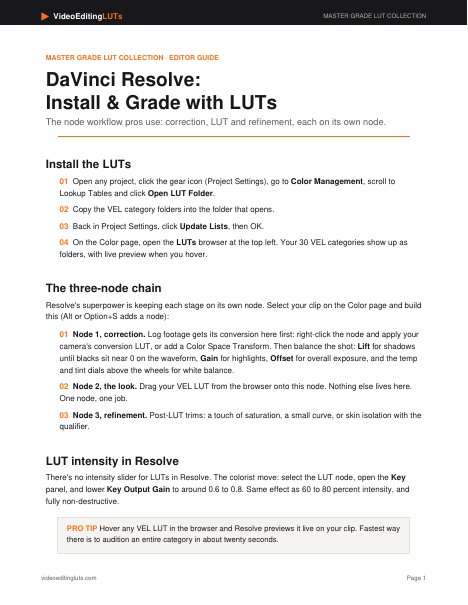
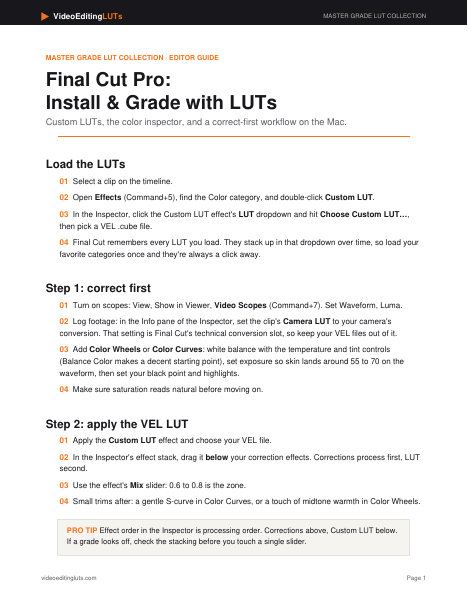
In Premiere Pro, open the Lumetri Color panel, click the dropdown next to the LUT field, select "Browse," and navigate to the .cube file. In Final Cut Pro, go to the Color Inspector and select "Custom LUT." In DaVinci Resolve, right-click in the LUT gallery on the Color page, select "Open File Location," paste the .cube files, and refresh.
Yes. All LUTs from the free starter pack are royalty-free and can be used on any YouTube video, including monetized and commercial content. No attribution required, no licensing fees, no restrictions.
A LUT (Look-Up Table) is a color grading preset that transforms the colors in your video footage with a single click. Instead of spending hours manually adjusting colors, contrast, and tones, you can apply a LUT to instantly get a professional cinematic look. It's the same technique used in Hollywood films and by top YouTube creators like MrBeast, MKBHD, Casey Neistat, and Peter McKinnon.
The orange and teal look is the most popular cinematic color grade used in Hollywood blockbusters and YouTube videos. The easiest way to achieve it is with our free Cinematic Orange & Teal LUT — download the free pack, import "VEL_Classic_Teal_Orange.cube" into your editor, apply it to your footage, and adjust the intensity to around 70% for the most natural result.
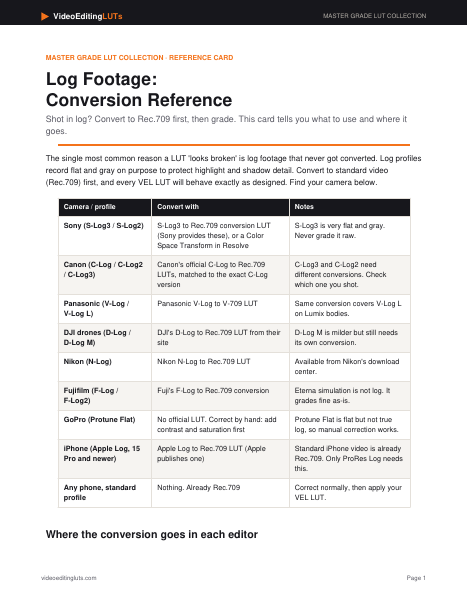
Yes. Our YouTube LUTs work with footage from any camera — iPhone, Samsung, GoPro, Sony a7 series, Canon EOS R, Fujifilm, Panasonic Lumix, DJI drones, Blackmagic, RED, and more. For best results, shoot in a flat or log profile if your camera supports it, then apply the LUT in post.
Our free pack includes 12 carefully curated .cube files covering the most popular color grading styles for video editors. Paid packs from sites like FilterGrade, PremiumBeat, or Motion Array cost $15–$100+ and may include more variations, but our free pack covers all the essential looks — cinematic, film print, moody, teal & orange, vintage, and more.