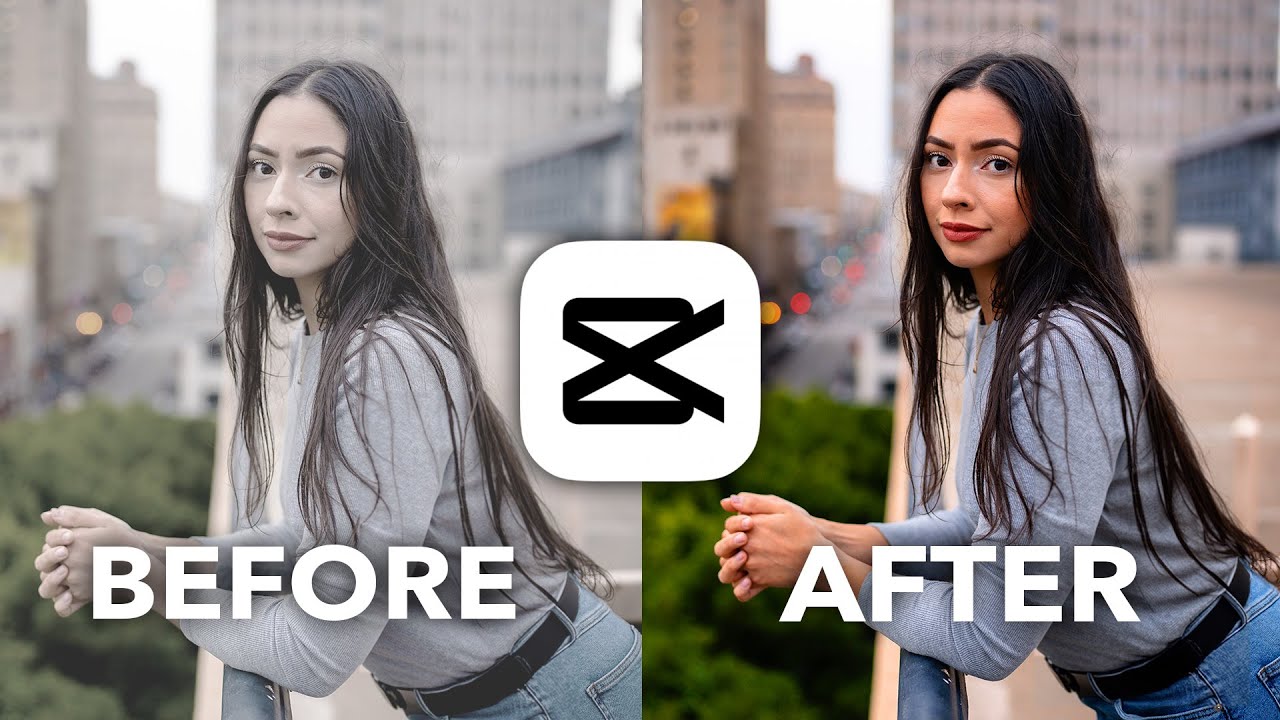
Free LUTs

Free LUTs for
CapCut.

CapCut supports importing your own .cube LUTs on both desktop and mobile — which means these 12 presets work on the same edits you cut for TikTok, Reels, and Shorts.

Get the Free 12-LUT Pack

Or grab three right now — no email: Classic Teal & Orange · Moody Dark · Vintage Chrome

Install

How to install LUTs
in CapCut.

  1. Desktop: open Adjust
    Select your clip, open the Adjust tab, and find the LUT section.
  2. Import the .cube file
    Click the import (+) option, browse to the pack, and pick a LUT — it stays in your LUT list for future projects.
  3. Mobile: Adjust → LUT
    Tap your clip → AdjustLUT → import, and select the .cube file from your Files app (download the pack to your phone first).
  4. Set the strength
    Use the strength slider after applying — short-form video usually wants a bolder grade, around 70–100%.

Faster batch grading in CapCut

On desktop, don’t LUT every clip individually: add an adjustment layer (Adjust → Add adjustment layer) spanning your edit and import the .cube file onto it — the grade covers everything below, and one strength slider rules the video.

When a scene changes brightness mid-video — indoors to outdoors, day to night — keyframe the LUT strength on the adjustment layer instead of cutting it: a 60%-to-85% ramp reads as intentional, a hard jump reads as a mistake.

On mobile, grade your first clip, then use the copy-edits option to apply the same adjustments across clips. Always export at 1080p with the highest available bitrate — the LUT’s subtle gradients are the first thing low-bitrate exports destroy.

How to color grade in CapCut manually

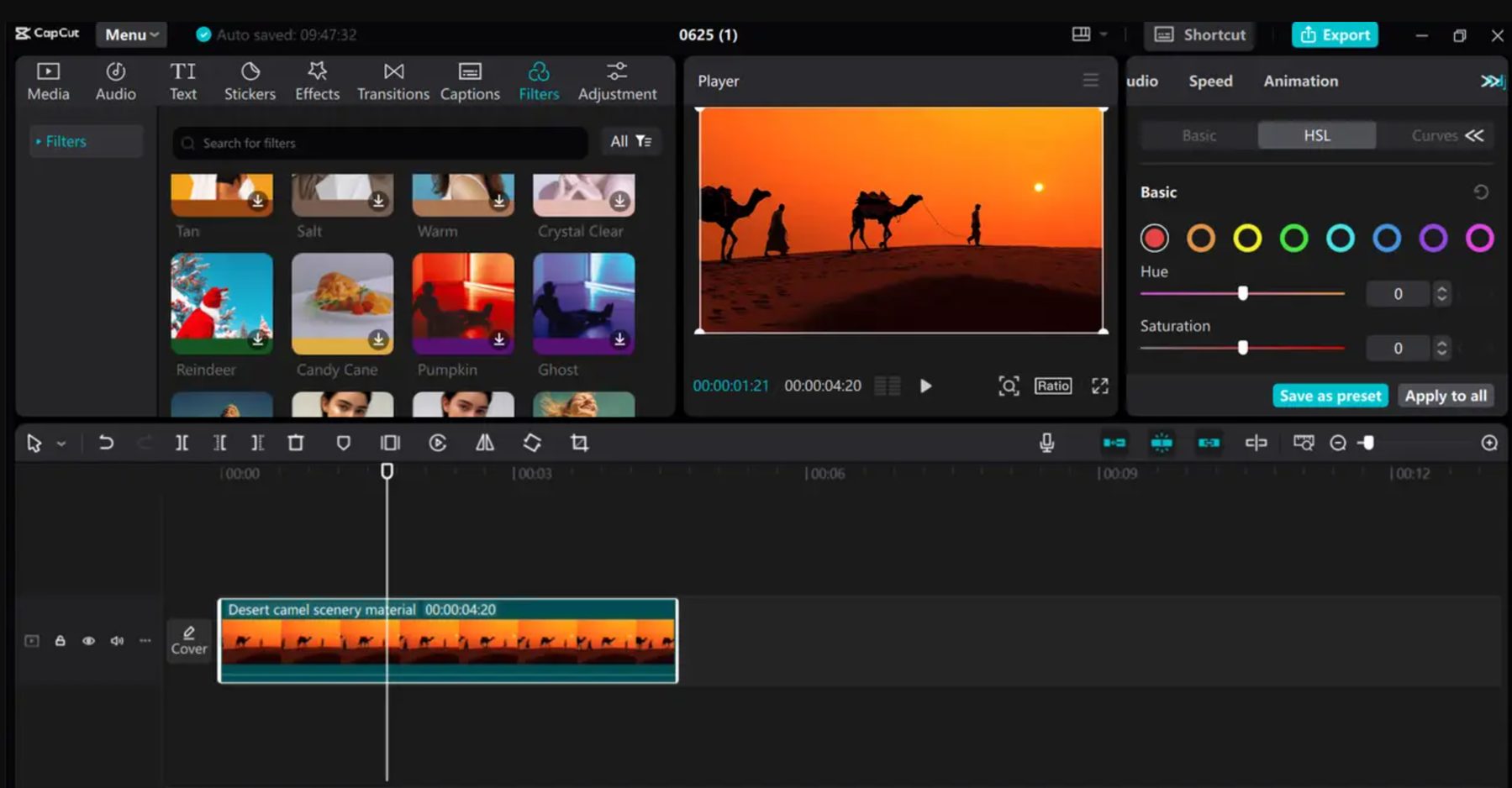
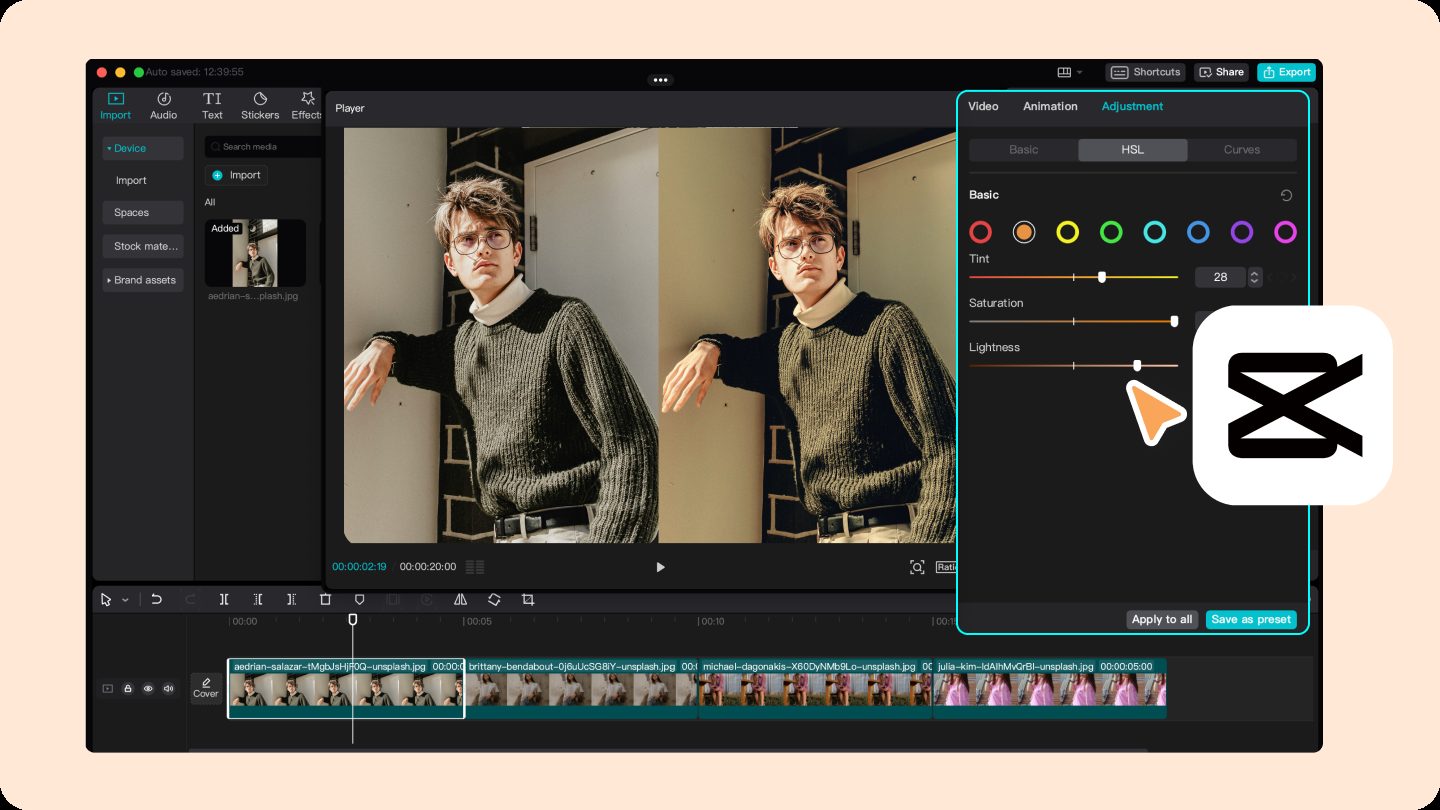
CapCut’s manual grading lives in the Adjust panel: exposure, contrast, highlights and shadows for tone; color temperature and tint for balance; saturation for intensity. On desktop you also get curves and HSL — the HSL panel is the hidden power tool, letting you shift, saturate, or mute individual color ranges like a desktop NLE.

A solid manual order: fix temperature first (phone footage runs cool more often than warm), set exposure and contrast, lift shadows slightly if the video is headed to TikTok or Reels, then use HSL to push the look — desaturate greens, warm the oranges, cool the blues.

That’s a teal-orange grade built by hand — or it’s one tap: import a .cube file from the free pack via Adjust → LUT and the finished grade lands instantly, with a strength slider for taste. For batch edits and daily posting, the LUT route is the one that survives a real content schedule.

Which LUTs to use

The best LUTs in the pack for CapCut work.

TikToks and Reels

YT_Matte_Fade or VEL_Vintage_Chrome — the soft matte and retro looks that fit the format.

Moody hooks and night shots

YT_Moody_Dark — punchy shadows that read well on phone screens.

Clean talking-to-camera Shorts

VEL_Skin_Tone_Shaper keeps faces natural under mixed lighting.

FAQ

CapCut LUT questions.

What are the best free LUTs for CapCut?

From this free pack: YT_Matte_Fade and VEL_Vintage_Chrome are the best picks for TikToks and Reels, YT_Moody_Dark for punchy night hooks, and VEL_Skin_Tone_Shaper for talking-to-camera Shorts. All 12 import into CapCut on both desktop and mobile.

Can I use custom LUTs in CapCut on my phone?

Yes — recent CapCut mobile versions support LUT import. Download the pack to your phone, then tap your clip → Adjust → LUT → import and choose the .cube file.

Are these LUTs good for TikTok and Instagram Reels?

Yes — YT_Matte_Fade, VEL_Vintage_Chrome and YT_Moody_Dark were picked with short-form in mind: bold enough to read on small screens, subtle enough not to crush skin tones.

Does applying a LUT reduce video quality in CapCut?

No. A LUT only remaps colors — it doesn’t change resolution or bitrate. Export quality is controlled by your export settings, not the grade.

Free Download

Grade your next
CapCut edit.

12 professional .cube LUTs. Free, no credit card.

Download the Free Pack