Free LUTs

Free Teal LUT.

A pure teal grade pushes shadows and water toward vivid cyan while keeping highlights crisp, for the cool, modern, slightly futuristic look you see in tech reviews, car edits, and night-city footage. VEL_Vivid_Teal is the bold version — download it now, no email required.

Download VEL_Vivid_Teal.cube — Free, No Email

Want all 12 looks? Get the full free pack · Prefer a different look? Teal & Orange · Cinematic · Moody Blue

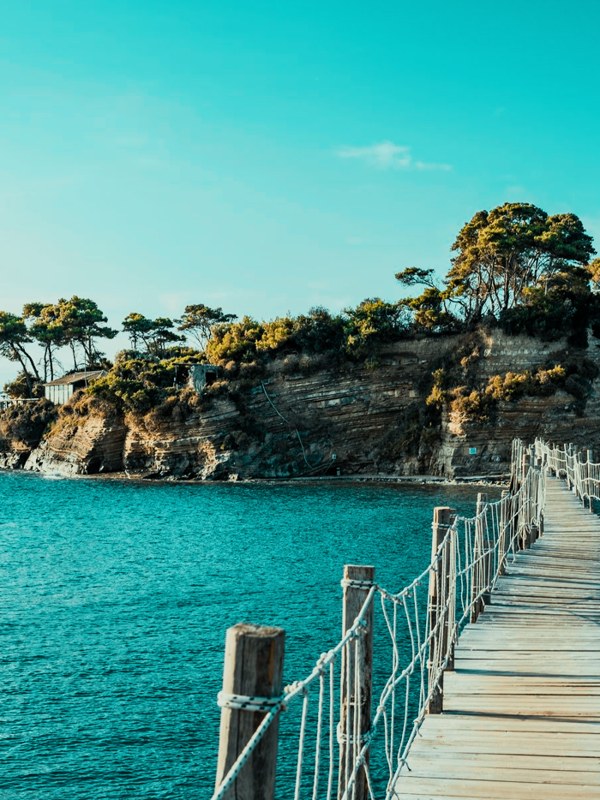
teal LUT applied to travel footage — before and after color grade
Guide

How to get the teal look.

  1. Download the .cube file
    VEL_Vivid_Teal.cube downloads straight from the button above with no signup, and every look in the 12-LUT pack is free too.
  2. Balance your footage first
    This is a strong grade, so neutralize your footage before applying — a teal LUT on already-cool footage tips into unnatural blue. Get to neutral, then let the LUT do the pushing.
  3. Apply in your editor
    Drop it in via Lumetri Creative in Premiere Pro, the Color-page LUT list in DaVinci Resolve, a Custom LUT effect in Final Cut Pro, or Adjust → LUT in CapCut.
  4. Dial it back to taste
    Full strength is punchy and stylized; pull it to 50–75% for a cooler-but-natural cinematic wash.

How the look is built

A teal grade concentrates its energy in the shadows and mid-darks, rotating them toward cyan-green while leaving highlights close to white. Because it does not warm the highlights the way teal-and-orange does, the whole frame reads cooler and cleaner — more digital, more modern, less Hollywood.

The look leans on cool subjects: water, glass, metal, neon, overcast skies. Anything with reflective or blue-leaning surfaces gains depth, because the LUT deepens exactly those tones. Skin, meanwhile, is held back from going teal, so faces do not turn corpse-like — the common failure of a heavy cyan preset.

It is at its best when a warm subject sits against a cool world: a person on a blue night street, a car on wet asphalt. On uniformly warm footage there is little for the teal to grab, and the grade fights the image instead of shaping it.

Quick picks

Where this works best.

Where it shines

Tech and product reviews, car and street edits, night-city b-roll, and any footage with water, glass, or neon — cool surfaces the teal can deepen.

Where to skip it

Warm, sunlit, skin-heavy footage like weddings or golden-hour portraits — the cool cast fights the warmth. Reach for Golden Hour or Warm Film there.

Pairs well with

Teal & Orange when you want warm skin to survive the cool grade, or Moody Blue for a darker, moodier cousin.

FAQ

teal LUT questions.

How do I get a teal look?

Push shadows and cool surfaces — water, glass, sky, neon — toward cyan-teal while keeping highlights clean and skin natural, so the frame reads modern and slightly futuristic. You can do it with a hue-vs-hue curve, but the fastest route is to drop a teal LUT like VEL_Vivid_Teal onto your clip: it applies the whole grade in one click, free and with no email. Balance your footage first, then pull the LUT to 50–75% so faces don’t go teal.

How do I get a teal look in CapCut or on my phone?

Download the free .cube file, open CapCut, go Adjust → LUT, import it, and lower the intensity. The same file works in Premiere Pro (Lumetri), DaVinci Resolve, and Final Cut Pro, so the look stays identical from phone to desktop.

Where can I download a free teal LUT?

Right here — VEL_Vivid_Teal.cube is a direct download with no email or signup, in standard .cube format for Premiere Pro, DaVinci Resolve, Final Cut Pro, CapCut, and any LUT-capable editor.

What is the difference between a teal LUT and a teal and orange LUT?

A teal LUT cools the whole image, pushing shadows and mid-darks toward cyan for a clean, modern feel. Teal and orange adds warm orange to skin and highlights on top of that, so faces pop warm against cool surroundings. This one is the pure-teal version.

Is this teal LUT free for commercial use?

Yes — use it in monetized videos, client projects, films, and social posts with no attribution required.

The teal LUT makes my footage look blue and unnatural — why?

The footage was probably cool to begin with, so the LUT stacks onto an existing blue cast. Warm your white balance back to neutral first, then apply, and reduce the intensity to around 60 percent.

Free Download

12 free LUTs.
Every look covered.

Professional .cube files. Free, no credit card. Browse every style:

Teal & Orange Vivid Teal Cinematic Golden Hour Sunset Warm Pastel Vintage Film Faded Film Moody Dark Moody Blue Black & White

Download the Free Pack